
Spatialite Layer Example for QGIS
One way to set up a regular table with a geometry for use as a layer

INTRO: This is an admittedly introductory school effort to make a Spatialite layer out of tabular data for QGIS usage. These steps may be of some use to others.
RESULTS:
This is a preliminary look at the data, and I will have to do much in QGIS to make the data sensible for the audience. But here we have a layer of station data with a layer of circles on it, which is the point of this article:
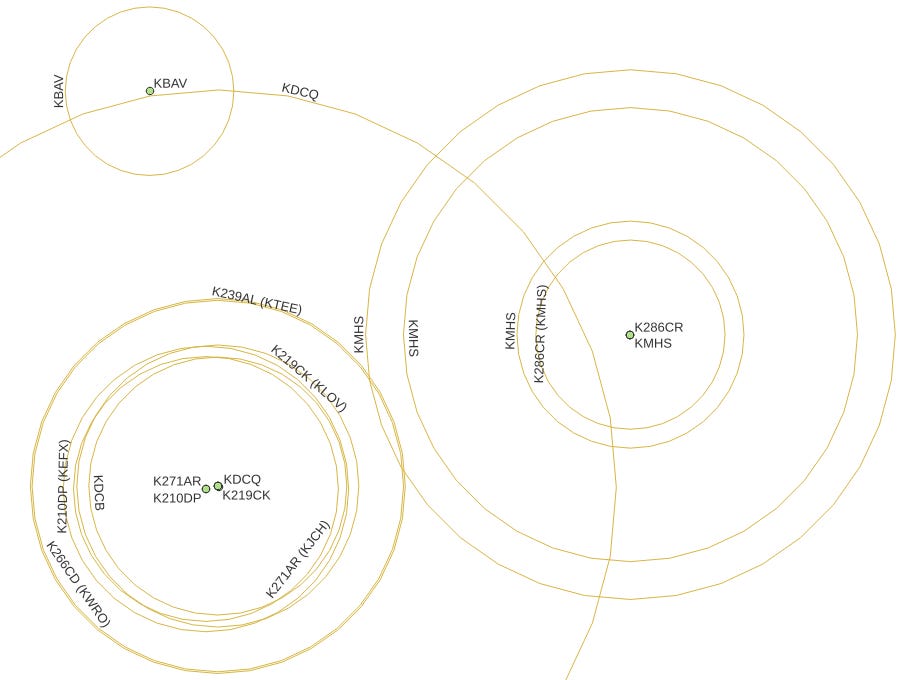
SETUP
PROBLEM: I have a table of lat/lon values representing radio station data, including callsigns, transmitter locations, and estimated local transmission range in miles.
GOAL: Prepare a QGIS-ready layer in Spatialite for circles to go over the point data layer.
METHOD: The steps to do this include:
Doing CREATE TABLE for the regular columns.
Adding a geometry column to the table.
Populating the table.
???
Profit!
DETAILS
I did try CREATE TABLE AS SELECT … to accomplish the table creation/population in one step, but fell short of joy. Without doing a deeper dive, one surmises that many details are handled via triggers under the covers, and one cannot short-circuit the process.
The data are as follows:
spatialite> SELECT city, calls, service, format, lat, lon, local, parent
FROM   western_oregon_stations;
Coos Bay|K239AL|FX|Adult Album Alternative|43.354444|-124.241667|10.9|KTEE/FM
North Bend|KTEE|FM|Adult Album Alternative|43.205|-124.301944|41|
Coos Bay|K210DP|FX|Christian Contemporary|43.354167|-124.242778|8.3|KEFX/FM
Coos Bay|K219CK|FX|Christian Contemporary|43.354444|-124.241667|8.2|KLOV/FM
Winchester|KLOV|FM|Christian Contemporary|43.235556|-123.321667|26.5|
Coos Bay|KYTT|FM|Christian Contemporary|43.463611|-124.095556|36.7|
Coos Bay|K286CR|FX|Classic Country|43.368611|-124.203056|5.5|KMHS/AM
Coos Bay|KMHS|AM|Classic Country|43.368611|-124.203056|13.2|
Coos Bay|KMHS|AM|Classic Country|43.368611|-124.203056|6.6|
Coos Bay|KDCQ|FM|Classic Hits|43.354333|-124.241553|23.1|
Coos Bay, Etc.|K206AI|FX|Classical|43.311667|-124.243333|7|KOOZ/FM
Myrtle Point|KOOZ|FM|Classical|42.958891|-124.273061|40.5|
Coos Bay|KZBY|FM|Classical|43.390833|-124.129722|17.5|
Coos Bay|KMHS|FM|Grade School (K-12)|43.368611|-124.203056|15.4|
Coos Bay|K266CD|FX|News/Talk|43.354444|-124.241667|10.8|KWRO/AM
Coquille|KWRO|AM|News/Talk|43.171389|-124.198333|47.5|
Coquille|KWRO|AM|News/Talk|43.171389|-124.198333|12.7|
Coos Bay|KLJN|FM|Oldies|43.463611|-124.095556|37|
Coos Bay|KSBA|FM|Public Radio|43.390444|-124.130167|24.4|
Coos Bay|K271AR|FX|Religious|43.354167|-124.242778|7.7|KJCH/FM
Coos Bay|KBAV|FL|Religious|43.391389|-124.248056|4.9|
Coos Bay|KDCB|FM|Religious|43.354444|-124.241667|7.5|
Coos Bay|KJCH|FM|Religious|42.958889|-124.273056|34.5|
Coos Bay|KHSN|AM|Sports|43.432778|-124.208333|16.5|
Coos Bay|KHSN|AM|Sports|43.432778|-124.208333|16.5|
Coos Bay|KJAJ|FL|Variety|43.385278|-124.274167|3.6|
Note that, while not quoted, these data are all character strings. Note the ‘parent’ column on the right; we want to set up labels that clearly show the translator (FX) services.
1. CREATE TABLE for circles
spatialite> CREATE TABLE western_oregon_local_coverage(city, calls, service, format
                                          , lat, lon, local, parent);
Nothing exciting so far. Let’s add a geometry column to this table. Note that this column is
customarily ‘geometry’ and
the right-most column of the table.
Again, this post is a novice-level effort. The Cool Kids will be comfortable naming the geometry column ‘macho_grande’ and putting it wherever.
2. AddGeometryColumn to circles layer table
spatialite> SELECT AddGeometryColumn('western_oregon_local_coverage', 'geometry'
                                     , 5072, 'LINESTRING', 'XY');
Notes:
My project uses a Conus Albers coordinate reference system (EPSG:5072), whereas the default is commonly (WGS84:4326).
Our goal of turning the local transmission range into a circle centered on the lat/lon of the transmitter means that, per the MakeCircle and AddGeometryColumn documentation, we will be generating a LINESTRING series of XY coordinates in the geometry
When we execute this AddGeometryColumn at, it should return a 1, indicating success.
3. Populate the circles table
Now we want to load up this western_oregon_local_coverage, including deriving a circle geometry for each row to put into the geometry column:
INSERT INTO  western_oregon_local_coverage( city, calls, service, format
                                          , lat, lon, local, parent, geometry)
SELECT       city
           , CASE service
                  WHEN 'FX' THEN calls || ' (' || substr(parent,1,4) || ')'
                  ELSE  calls
             END
           , service
           , format, lat, lon, local, parent
           , MakeCircle( CAST(lon AS REAL)
                       , CAST(lat AS REAL)
                       , CAST(local AS REAL)  * CONVERSION_FACTOR
                       , 5072 )
FROM         western_oregon_stations;
Notes:
You can always work with the SELECT portion by itself and sort out any syntax errors.
For the ‘calls’ (call sign) field, I wanted to peek at the service value. Translator stations are noted by FX, so if we have one of those, I want to grab the first four letters of the ‘parent’ field value and add those parenthetically. This is the sort of work one could also do in an expression in QGIS, but in general, the earlier the better.
In the MakeCircle() call, we need to cast the longitude (x) and latitude (y) values for the circle to REAL, or those values remain character data, and the function call returns Null without error. Ask me how I know.
The ‘local’ radius for the circle has to be multiplied by a km/m constant CONVERSION_FACTOR, because the data are given in miles, but Spatialite is metric.
And, once more, we are using Conus Albers, 5072 for the projection.
FINALLY…
The Database|DB Manager is a very useful tool in this context. Connect to your .spatialite file, select the layer, and see if there is a geometry column and five triggers on the Info tab. Look at the data Table tab. If there is Null rather than the type of the geometry on offer (LINESTRING in this example) then something was probably amiss when calculating the geometry data.